
Materials, grass and decals
The rules decide where a layer goes. Four settings at the top of each layer decide what it is: its terrain material, its preview colour, its grass and its decals. None of them changes where the layer paints, so changing them is instant.
Material
Section titled “Material”Material is the BeamNG terrain material the layer paints, by name (Grass, forest_floor, rock,
BeachSand…). The field shows a thumbnail and a tick when the asset library knows the material, and a
warning when it doesn’t. Click the grid button to pick one in the asset browser, which lists the terrain
materials of the game, its levels, your mods and your project. You can also right-click a terrain material
in the Asset Browser panel → Assign to the node → L<n> Material, where <n> is the layer’s
number (the menu lists every layer’s fields).
The material decides:
- The look: its detail, macro and normal textures.
- The driving: its ground model. Mud is soft and slippery, gravel and dirt loose, rock and asphalt grippy. A mud layer in the hollows of a trail map is also a driving obstacle.
- The grass: BeamNG grows grass by material (below).
To use your own textures, make a terrain material with File → Import Asset (from colour, normal and roughness maps). It is stored in the project and shows in the asset browser like game content.
Preview Color is only the colour of the layer in the editor’s 3D and 2D views. Give similar materials clearly different colours while you work; it changes nothing in the level.
Grass lists BeamNG grass presets (GroundCover objects of the game’s levels, named
<level>/<name>, for example italy/small_grass_green_close) to grow on the layer’s material. Each
preset is a mix of billboard plants with its own height, spacing and fade distance, so combine a close
preset for detail at your feet with a distant one that fills the view further out, as stock levels do.
Pick them with the grid button: the browser shows every grass preset in the game and your mods.
Grass Density scales the number of plants: 0 grows none, 1 is the preset’s own density, up to 4.
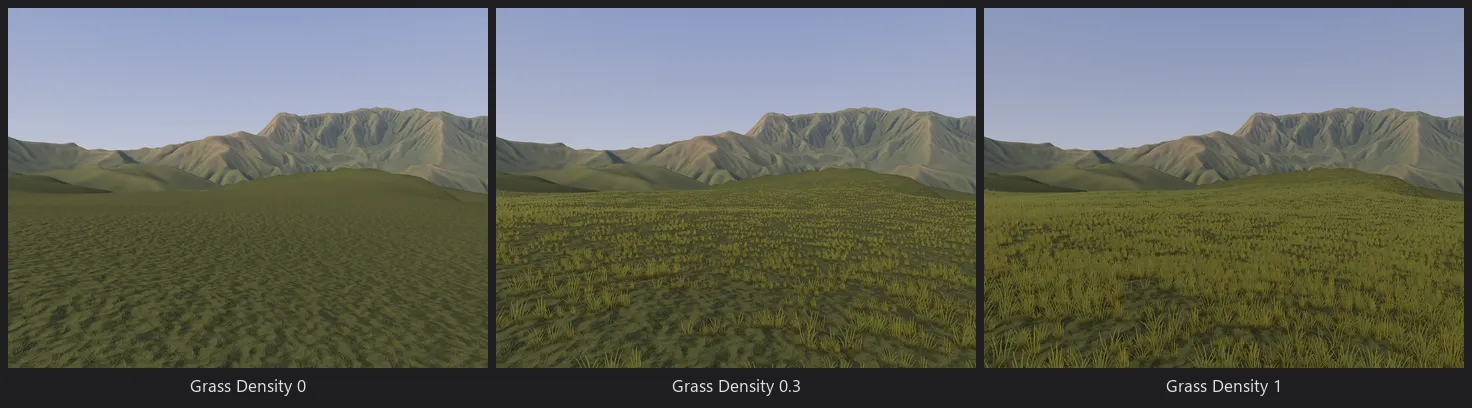
The grass grows wherever the layer’s material is painted, by any layer or node. Two layers with the
same material share their grass: give the meadow, dry grass and verges their own materials (Grass2,
Grass3, dirt_grass) if they should grow different plants.
Leave Grass empty for bare ground: rock, mud, sand, asphalt.
Decals
Section titled “Decals”Decals scatters terrain decals over the layer: fallen leaves on the forest floor, dirty patches on mud, pebbles on rocky dirt. Pick DecalData with the grid button. Decals /ha is how many per hectare of the layer and Decal Size their size in metres.
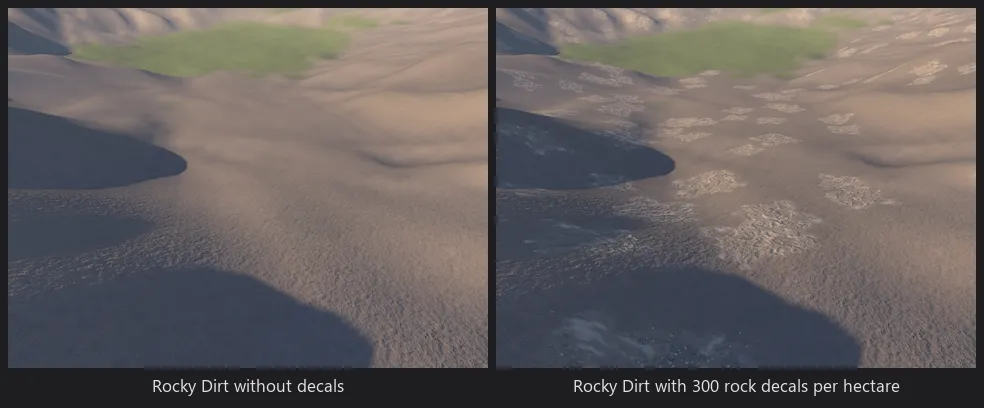
Decals go where the layer is painted, at least a third of a decal from its edges (so leaves don’t spill onto the grass beside the forest), and off the road surfaces and Keep Out masks. A node places at most 40 000 decals; lower the rate if the export warns that it hit the limit. They appear in the Real view and in the exported level, not in the editor’s 3D view.
Underwater bed
Section titled “Underwater bed”BeamNG grows grass by material whether the ground is under water or not, so a lake painted Grass would be full of grass. Every Ground Cover node therefore paints an underwater bed last, over all its layers, wherever the ground is under the water of a Water node before it.
| Setting | |
|---|---|
| Underwater Bed | Paint the bed. On by default. |
| Underwater Material | The bed’s material: Mud by default. |
| Underwater Margin | Also paint the ground this many metres from the water, so the bank right at the waterline isn’t grassy. |
| Underwater Grass, Density | Plants for the bed: reeds in a swamp. Empty by default. |
The export warns when a layer with grass uses the same material as the bed: that grass would grow under water too.
In BeamNG
Section titled “In BeamNG”On export the node’s painting becomes the terrain’s material layer map, at the export resolution:
- The base terrain material everywhere.
- Every Ground Cover node, in tree order, each over the ones before it.
- The pads of buildings and props that have a pad material.
- The road surfaces and their shoulders, with each road class’s Terrain Material.
The grass presets are copied into the level as GroundCover objects, moved onto each layer’s material, and the decals are added to the level’s decals.
- Create a new level copies the definitions of every material and grass preset it uses into the level (under the level’s own names), so they work without the levels they came from.
- Export into an existing level writes only the painting: every terrain material you use must already be defined in that level. The export warns about any that aren’t. Pick materials from that level, or from common content, when you texture for an existing level.