
Editing single branches
Generators shape whole sets of branches. When one branch is in the wrong place (a bough crossing the trunk, a limb pointing at the camera, a gap in the crown) switch the toolbar’s edit mode to Edit nodes and change that one branch by hand.
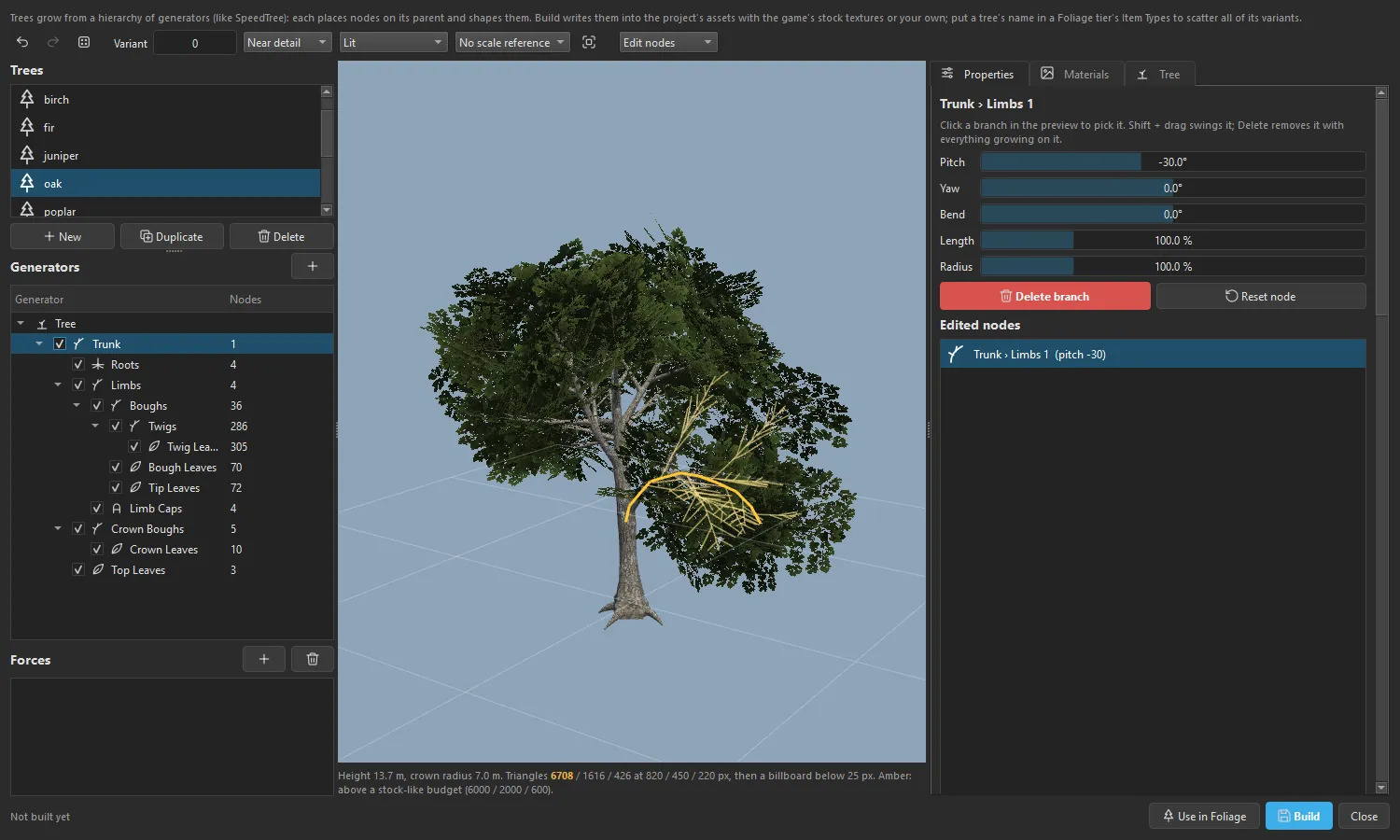
- Click a branch in the preview to pick it. The branch and everything growing on it is highlighted, and the Properties tab shows its edit. Node mode uses the Lit view, since picking needs it.
- Shift + drag swings the picked branch: left and right turn it around its parent (yaw), up and down swing it away from or towards the parent (pitch).
- Delete removes the branch with everything on it, or brings a deleted one back.
| Setting | |
|---|---|
| Pitch | Swings the branch up or down, away from its parent (degrees). |
| Yaw | Turns it around its parent (degrees). |
| Bend | Curls it along its length (degrees over the whole branch). |
| Length | Scales its length; everything growing on it moves along. |
| Radius | Scales its thickness. |
Reset node forgets the picked branch’s edits (and those of the branches on it). The Edited nodes list shows every branch you’ve changed; click one to pick it, or Clear all edits.
Edits are stored per branch, by its place in the hierarchy (the 4th bough’s 2nd twig, and so on). Deleting a branch reshuffles nothing else, and editing generators afterwards keeps your edits as long as the branch still exists. Changing a generator’s Count or Mode renumbers its branches, though, and edits then land on other branches, as in SpeedTree. Do the hand edits last.